.avif)

PrestaShop Store Locator: AI-Powered, SEO-Ready, Zero Code
Everything you need from a PrestaShop store locator

AI Content Assistant
Stop writing location descriptions by hand. MapCosmos generates engaging, SEO-optimized content for every store, including local keywords, opening hours context, and product highlights, in seconds.

One-snippet embed
Copy one HTML snippet into your PrestaShop theme. No apps, no extensions, no developer needed. Your store locator is live in minutes and compatible with every PrestaShop theme.

150+ no-code customization options
Control layout, colors, map styles, filters, fonts, languages, and currencies. Every detail of your store locator can be tailored to match your brand, with no design experience or coding required.

Dedicated SEO pages for every location
Each store gets its own indexed page with AI-generated metadata, schema markup, and local keywords. Your locations start appearing in local search results, driving organic traffic without additional ad spend.

Rich location content and media
Showcase products, services, live reviews, photo galleries, team bios, downloadable menus or flyers, and custom map markers. Turn every location page into a conversion tool, not just a map pin.

Real-time analytics and live data sync
See exactly what customers search for, which locations get the most views, and where drop-off happens. Connect your CRM or inventory system to keep all location data accurate and up to date automatically.
Launch your PrestaShop store locator today
Hundreds of PrestaShop merchants already use MapCosmos to turn local intent into revenue. Start your free trial today and have your store locator live before the end of the day.
How to add a PrestShop Store Locator wihout coding
Add a powerful, fully customizable store locator for PrestaShop to your online store to help customers quickly find your physical locations. This step‑by‑step guide shows you how to set up your PrestaShop store locator in minutes, with zero coding required.
Step 1: Configure Your Map
- Log in to your MapCosmos dashboard.
- Add Locations: Enter store addresses manually or import via CSV/Excel.
- Customize Design: Adjust colors, fonts, and layout to match your PrestaShop theme.
- Add Details: Include opening hours, parking, accessibility, and more.
- Copy Installation Code: Click “Copy installation code” in the Map Widget view.
👉For a full overview of customization options, map styles, and advanced features, see our detailed Store Locator Features page.
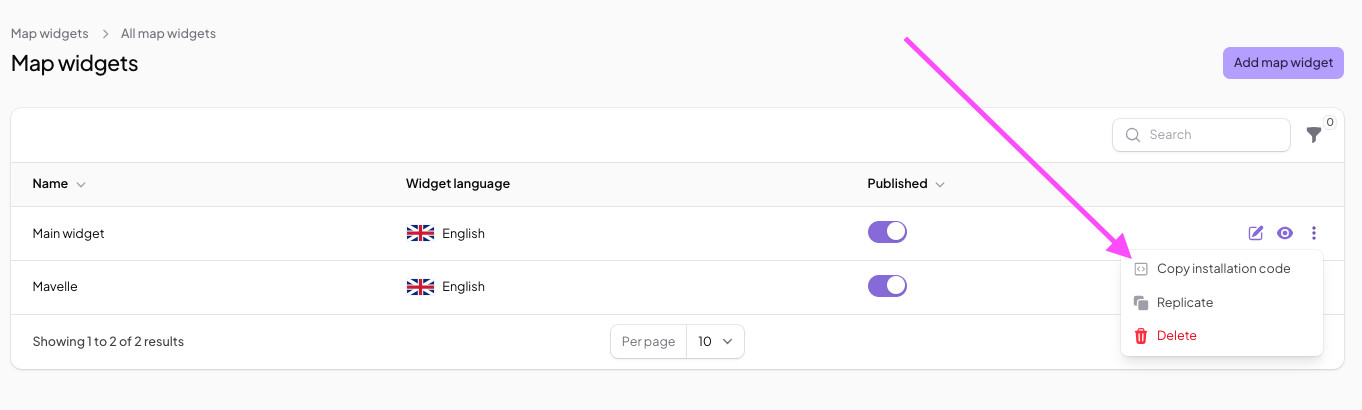
For a detailed walkthrough on how to set up your MapCosmos widget and generate the installation code, please refer to our detailed guide.
Step 2: Install and Configure the Module
First, you'll upload and set up the module in your PrestaShop back office.
1. Navigate to Modules in your PrestaShop dashboard. Once there, click the Upload a module button.
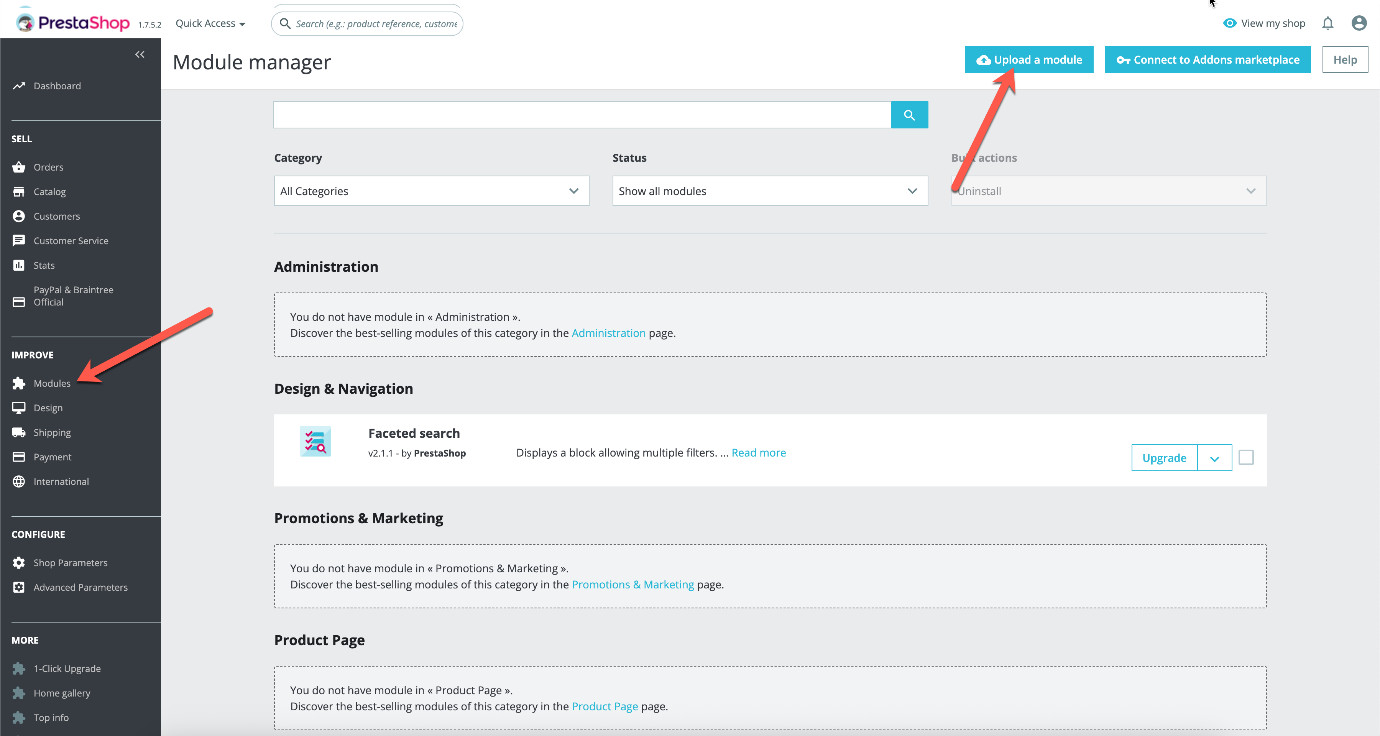
2. In the pop-up window, upload the MapCosmos module, which can be downloaded using this link.
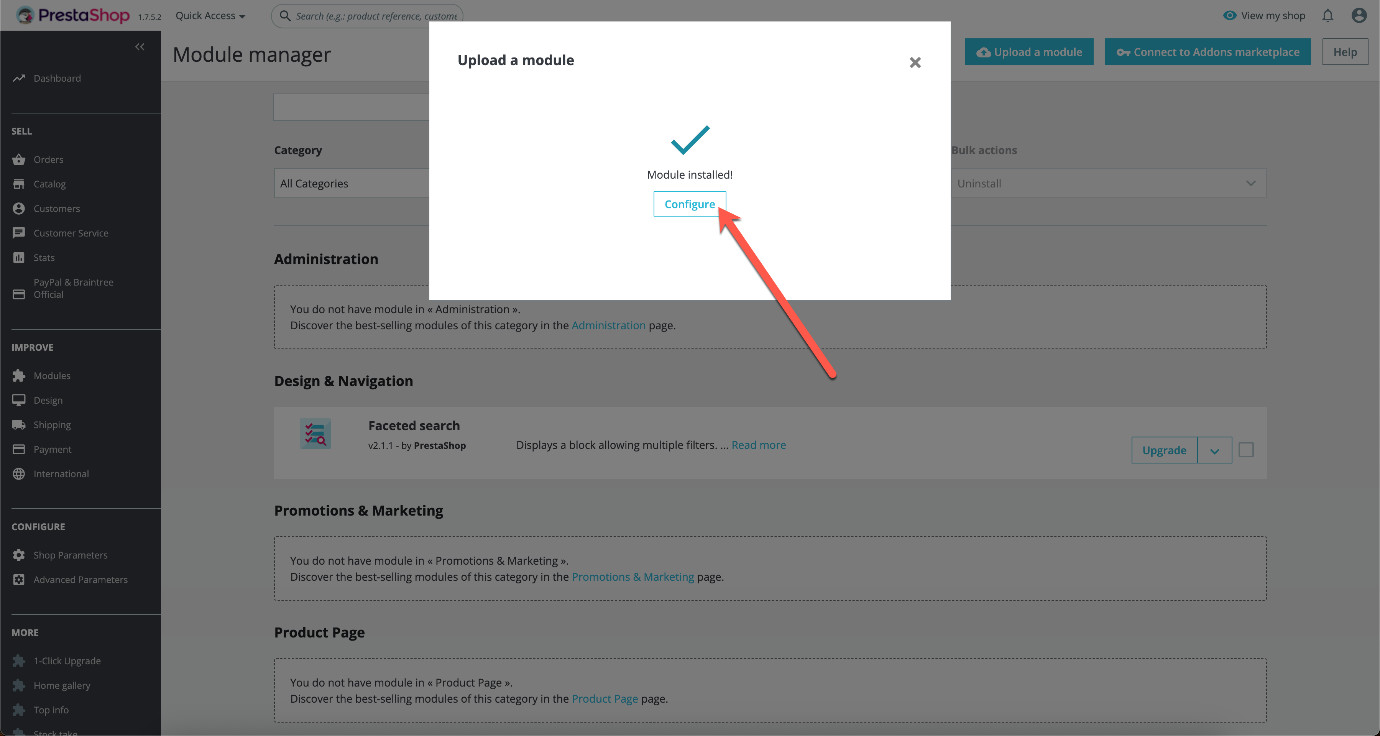
3. After the module has been successfully installed, click the Configure button to proceed.
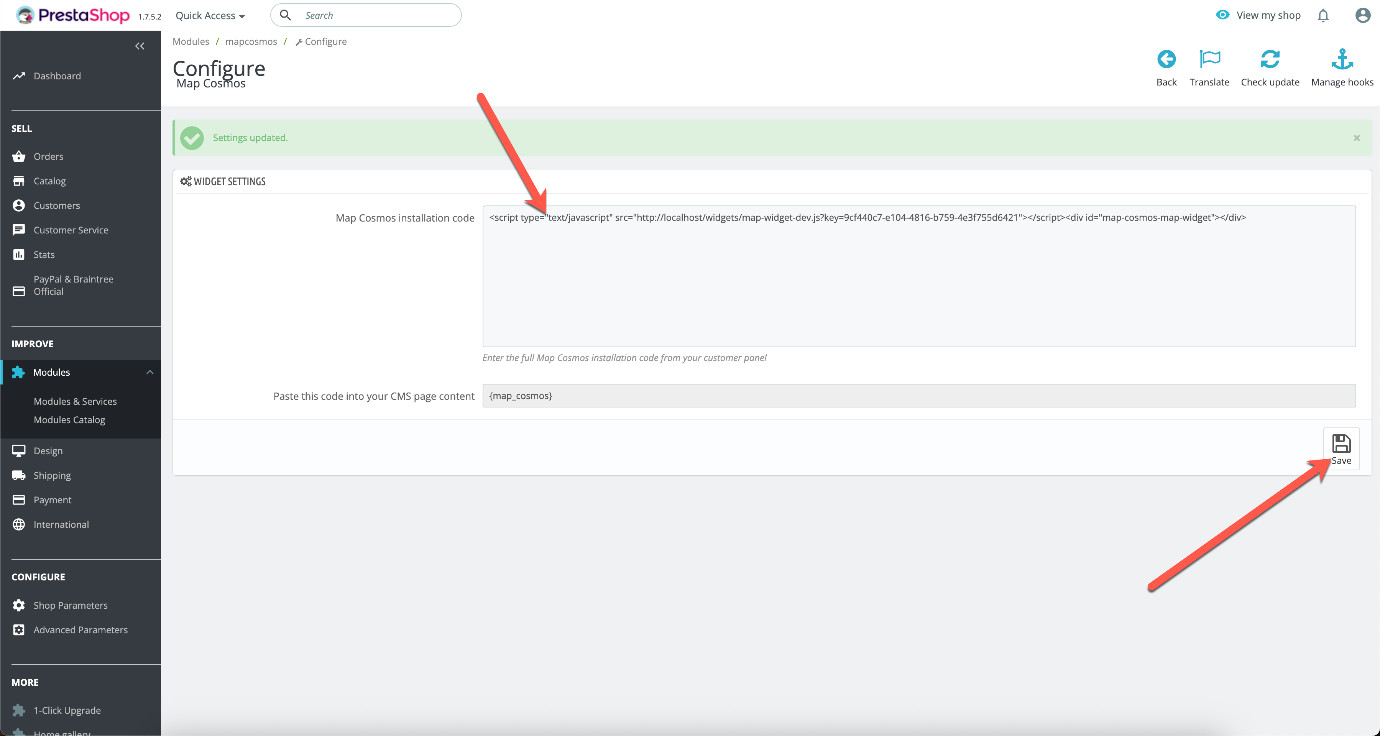
4. In the configuration screen, paste your unique MapCosmos installation code (which you copied earlier) into the "Map Cosmos installation code" field and click Save. Your store locator PrestaShop module is now configured and ready to display your locations.
Part 2: Display the Map on a Page
Next, you will create a new page to display your store locator.
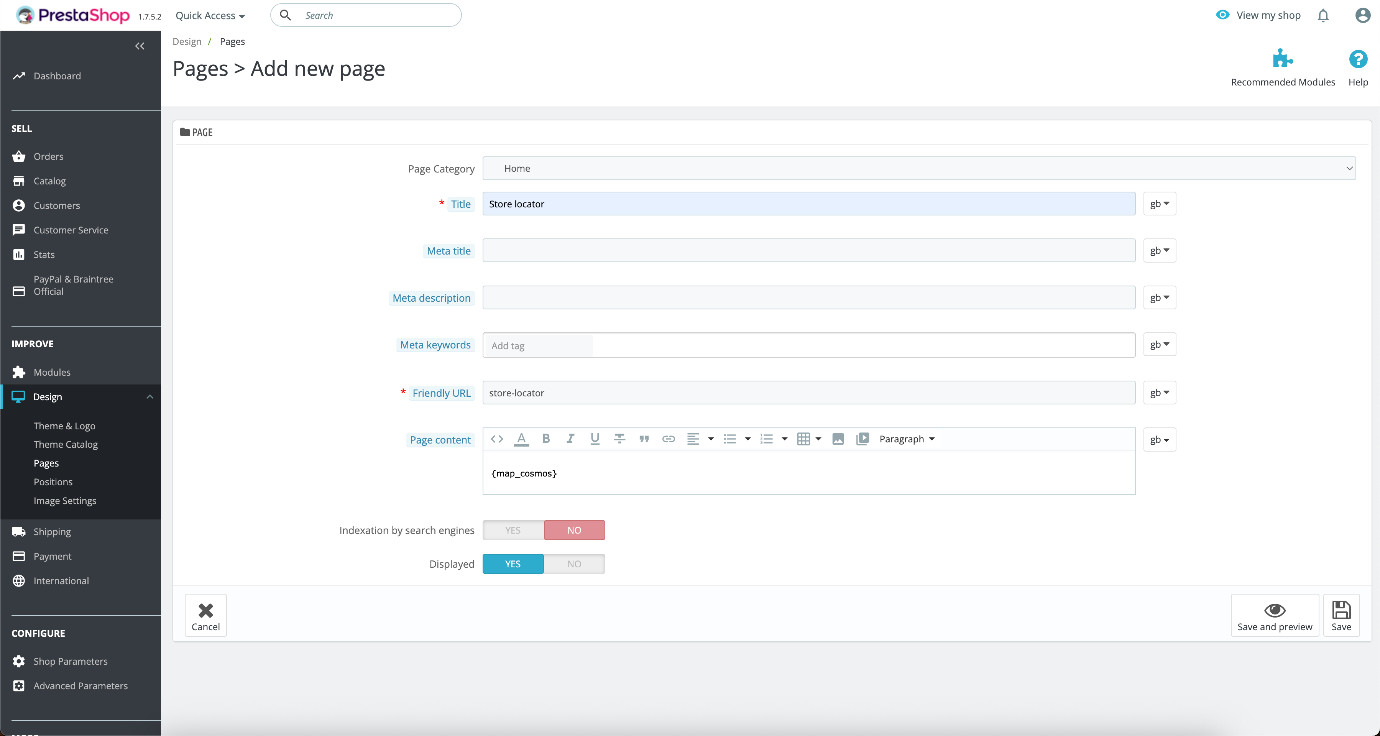
1. Navigate to Design > Pages in your PrestaShop to view your list of CMS pages. Click Add new page.

2. Fill in the page details. Give your page a Title, such as "Store locator".
3. In the Page content editor, add the shortcode {map_cosmos}. This shortcode will be automatically replaced with your interactive map on the live site.
4. Ensure the page is set as Displayed and click Save.
To get the most out of your store locator, it’s worth thinking beyond just installation. A well-implemented map doesn’t just show locations - it can actively guide customers toward visiting your stores and improve conversions. If you want to go further, check out our guide on making your store finder more effective for shoppers.
Your interactive PrestaShop store finder is now live and ready to help customers find your stores. Need assistance? Contact us at contact@mapcosmos.com! for support with your PrestaShop store finder.