.avif)
How to Add a Product or Service to Your Store Locator

Central Product and Service List
With store locator like MapCosmos, you can create a master list of products and services, each of which can be assigned to one or more store locations.
Each product or service can include:
- A name and SEO-friendly description
- Regular and promotional pricing
- External links to product pages, booking forms, or third-party marketplaces
- A customizable call-to-action (e.g., “Buy In Store,” “Book Service”)
This lets your customers view what’s available near them and act on it immediately.
Multiple Ways to Add or Update Offerings
Whether you have 5 locations or 500, keeping your product/service data up to date shouldn’t be a pain. That’s why MapCosmos supports:
1. Manual Input
Step 1: Log Into Your Store Locator Dashboard
Go to MapCosmos Store Locator page and log in.
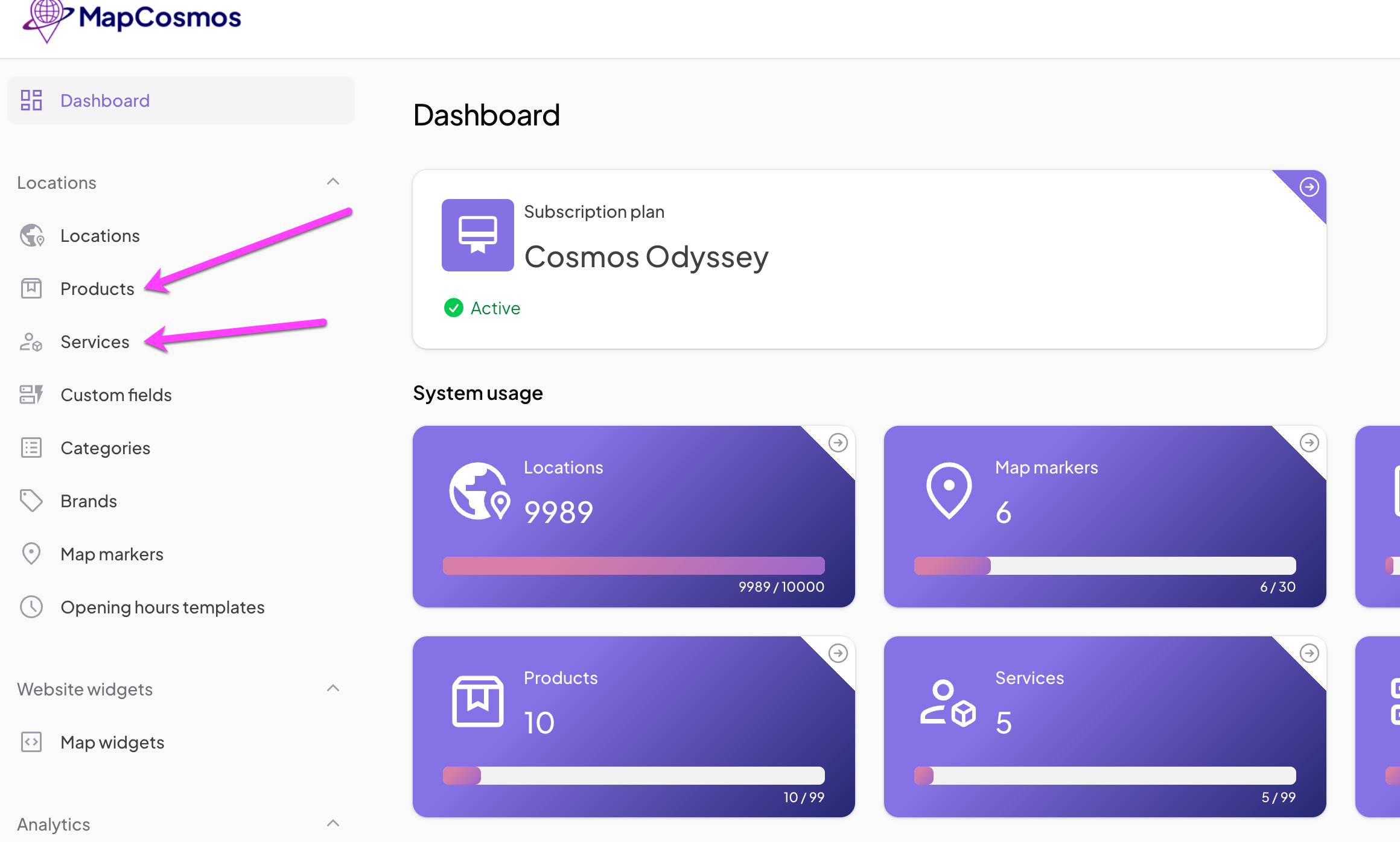
Step 2: Navigate to the "Products" and "Services" Section.
- Menu on the left, click on Products/Services
- You’ll be directed to a list view of existing offerings (if any)
Step 3: Click "Add New"
- Click the “Add Service/Product” button
- You can enter product or service details

Step 4: Fill In the Product/Service Details
Fill out the fields with your offering’s details. Common fields include:
If you are adding a service, you can also add duration time with units such as hour, day, week, depending on the nature of the service.
For example:
- A haircut might be 1 hour
- A weekend yoga retreat could be 3 days
- A consulting session might be 2 hours
Including duration helps customers understand the time commitment involved.
**Optional: Use AI to Auto-Generate Descriptions
Read our article How a Store Locator with Products and Services Boosts Local Visibility and Customer Experience
You’ll see a “Generate content” button.
The AI tool will create a GEO and SEO-friendly description
It can include localized keywords like “available in London” or “perfect for summer in Mediolan”
You can edit the output or regenerate for variations. Then apply to form.
.jpeg)
Step 5: Save
Click “Create” and/or “Publish” to make your new offering live on the front end.
Step 6: Assign to Specific Locations
- You can link this product/service to one or multiple store locations
- This ensures customers see location-specific offerings when browsing the map

2. CSV/Excel Import & Export
If you have many products or services, you can:
- Use a CSV or Excel file to import data in bulk
- Match your columns to system fields (field mapping)
- Assign products to multiple locations automatically
Benefits of This Setup
✅ Efficiency & Time-Saving
- Upload dozens or hundreds of entries in seconds
- No repetitive manual input for each store
- Update promotions in bulk for fast campaign rollouts
✅ Flexibility for Every Workflow
- Use bulk tools for major updates
- Use manual tools for location-specific offers or urgent changes
✅ Data Accuracy & Consistency
- Structured imports prevent data mismatches
- Field mapping ensures your prices, descriptions, and links go where they should
Seamless Integration with Other Systems
Your product and service data doesn’t have to live in isolation.
Whether you’re using Shopify, WooCommerce, ERPNext, or your own CRM/inventory system, you can sync product info across platforms with ease. This makes your store locator an extension of your sales and fulfillment ecosystem - not a standalone page.
Built-In Backup & Recovery
Need to migrate data? Change platforms? Deal with a system crash?
No problem. Exporting your product and service data regularly gives you a ready-to-import backup. You can re-upload everything in seconds if needed.
🧩 Coming Next: Custom Fields & Advanced Features
Want to add parking info, accessibility options, or a PDF catalog to your listings? Our next tutorial covers custom fields for products and services.
Ready to drive real results
See how MapCosmos transforms browsers into customers with a live walkthrough.