.avif)
Customize Your Location Page - the Ultimate Guide to SEO-Optimized, Conversion-Driven Location Pages.

Managing multiple business locations is a challenge. From franchises and global brands to regional service networks, customers need a simple way to find you. That’s where a multi-location store locator becomes essential. With Map Cosmos, you can build a fully customised store locator that improves local SEO, enhances user experience, and works seamlessly across regions and languages.
- Boosts discoverability for every location in Google and Maps.
- Strengthens franchise credibility with a consistent business location directory.
- Delivers a fast, engaging experience for users worldwide.
If you’re a retail chain, real estate marketplace, or healthcare provider, a global store locator ensures customers never struggle to find you.
Why Single Location Store Locator Pages Work
A tailored store finder page is much more effective than a generic “Contact Us” page. It:
- Gets indexed in Google as a location landing page SEO asset.
- Displays your business in local map results.
- Offers conversion-friendly design with calls-to-action.
Whether you’re a boutique, clinic, or service provider, a well-built Google Maps store locator gives you a competitive edge.
How to Create a High-Converting Location Page
To get started, log in to your MapCosmos dashboard. From the menu on the left-hand side, select Map Widgets. This will take you directly to the place where you can create map widget or list of widgets you have created.

For each widget in your account, you can easily make changes by clicking the edit icon located on the right-hand side of the widget. Next to the edit icon, you'll also find a preview icon, which lets you quickly view how your location page and list of locations with map look without entering the full settings panel - perfect if you just want to check the appearance without making any updates
- Replicate the widget (clone it for faster setup)
- Copy the installation code (to easily embed your store locator on your website)
- Remove the widget if it's no longer needed

Whether you're managing one or multiple widgets, this intuitive interface makes handling your store locator fast and efficient.
Customizing Your Store Locator Widget in MapCosmos
Once you're inside your widget, you'll notice a top menu that allows you to configure a wide range of settings functionality, design, and layout for both your location page and location listing page. This gives you full control over how your store locator looks and behaves on your website.

At the top of the panel, you’ll also find two preview buttons:
- One lets you preview your individual location page -a detailed view for a single store or office.
- The other allows you to see the full map view with a list of all your business locations, exactly as your customers will see it.
Showcase Your Business With These Key Elements:
- Business name, logo, address, phone number
- Operating hours and appointment availability
- Services offered, with pricing and discounts
- Team bios and photos to personalize your brand
- Galleries with high-quality images of your store, office, or service in action
This transforms a simple store locator into a high-converting local marketing tool.
🛠 Customize Every Element of Your Location Page Layout
Inside the Locations Settings tab, Map Cosmos offers a powerful drag-and-drop editor that lets you tailor every section of your location page layout. Whether you're optimizing for mobile UX, conversion rate, or SEO, you’re in control.
Scroll & See: Ready-Made Location Page with Custom Fields. Remember you can always change the layout, swap the logo, update services, showcase your team. It's all editable.

What You Can Customize:
1. Logo & Button Styling
- Background color
- Border style and radius
- Font color
- Hover background color
- Text alignment
2. Map Settings
- Adjustable map height
- Border styling to match your page layout
3. Address Settings
- Customize the visibility
4. Contact Information
Show or hide:
- Phone number
- Email address
- Website URL
Style the book buttons with:
- Border radius
- Background and hover colors
- Font size and weight
5. Opening Hours
- Clear, localized formatting
- Display or hide days/times based on your business hours
👉 read how to create opening hours template.
6. Content Block
- Add descriptions, location-specific info
7. Gallery Settings
- Set image height
- Customize border and layout
- Showcase photos of your team, storefront, or space
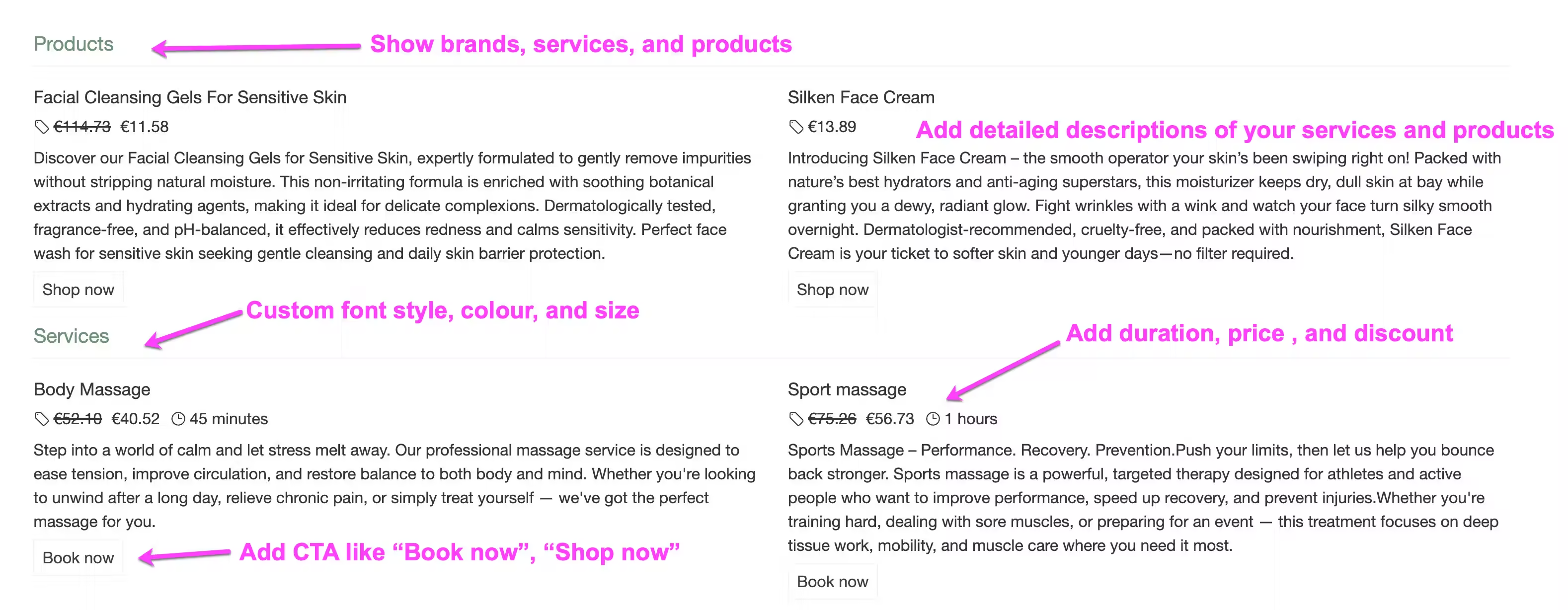
8. Dispaly Services and products
- Add Conversion-Focused Calls-to-Action (CTAs) - like "Shop", "Book"
- Add price and discout
- Customize border and layout
9. Team members
- Show team members on each location page: display team photos, add roles and titles (e.g., Manager, Specialist, Technician), and include descriptions or bios. Add stylelike background color, font color, border color and size.
👉 read how to add team members.
This level of flexibility allows your store locator design to work across all industries—from high-end boutiques to healthcare facilities—while maintaining brand consistency and accessibility.
10. Custom fields.
Use custom fields to add important details to each location’s profile, making them easy for customers to find. For example, highlight parking options like “Free covered parking near [city center],” accessibility features such as “Wheelchair accessible entrance with ramp,” downloadable resources like product catalogs, or language availability with “Staff speak English and Spanish.” Clear, relevant custom fields improve user experience and help customers quickly find the information they need.
👉 read How to Add Custom Fields to Your Store Locator
Add Conversion-Focused Calls-to-Action (CTAs)
Every page in your store locator can feature customizable CTAs that match your brand voice and goals:
- “Book a Service”
- “Buy a Product”
- “Schedule an Appointment”
Unlike static templates, Map Cosmos lets you fully style and position these buttons, so they seamlessly integrate with your site’s user experience and conversion strategy.
Real-Time Preview – Never Publish Blind
With Map Cosmos, every change you make is instantly visible:
- Switch layouts
- Apply branding styles
- Adjust map filters
- Preview pages live before publishing
This ensures your store locator pages are always on-brand and optimized before going live.
Embed Anywhere. Customize Everything.
Map Cosmos works with every major CMS and website platform.
- Use the installation code to embed your store locator anywhere
- Add custom CSS to match your site’s design system
- Keep SEO best practices intact—every location page is crawlable, indexable, and mobile-optimized
Ideal For:
- Retail chains with multiple stores
- Real estate directories and agents
- Healthcare networks with multiple clinics
- Franchise operators needing brand consistency
- Service providers with regional offices
Unique Features That Set Map Cosmos Apart
Map Cosmos isn’t just another locator plugin—it’s built for performance and flexibility:
✓Add to Favorites and Get Directions buttons
✓ Customizable map frames that fit any layout
✓Team & Gallery sections to tell your story visually
✓ Toggle visibility of pricing, discounts, and product info
✓ Built-in social media links for wider brand reach
All these features are modular—add what you need, hide what you don’t.
Your customers are searching locally. Don’t let them land on a generic page that fails to convert.
With Map Cosmos, you create fully branded, conversion-optimized, SEO-friendly store locator pages that put your locations on the map, literally and digitally.
👉 Ready to take control of your location marketing?
Ready to drive real results
See how MapCosmos transforms browsers into customers with a live walkthrough.