.avif)

How to Add the MapCosmos Store Locator to Your Drupal Website (Step by Step)
Easily integrate a MapCosmos store locator into your Drupal website to help customers find your store locations quickly. This step-by-step guide covers everything from account setup to embedding the locator on your site.
1. Create a MapCosmos Account and Add Your Store Locations
- Sign up at MapCosmos to start creating your store locator map.
- Add each store with full details:
- Street address
- City and state
- Post code
- Opening hours
- Optional: team members, promotions, or special offers
Tip: Use the bulk upload option in MapCosmos to quickly add multiple store locations. This ensures your local SEO is optimized for multiple regions.
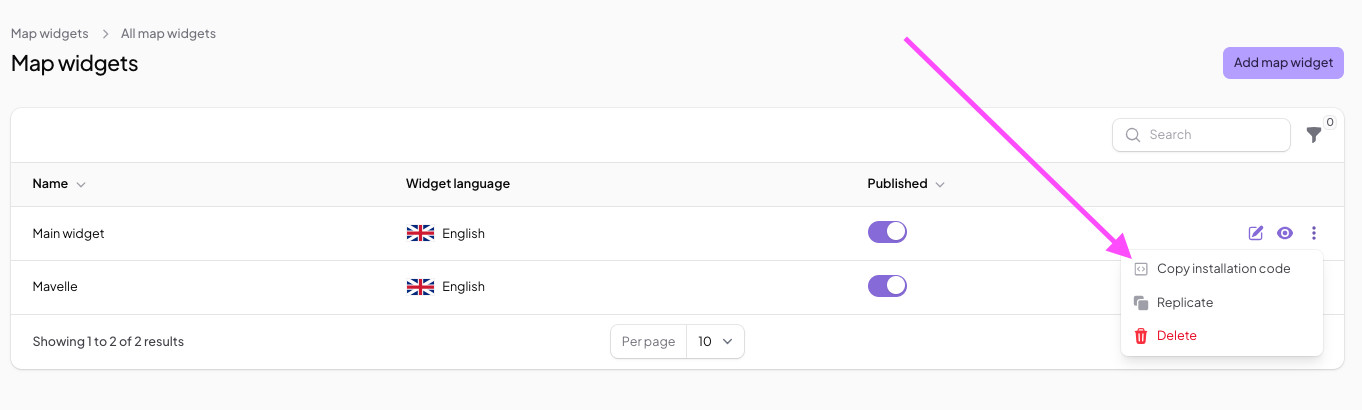
2. Copy the Installation Code
- Navigate to your MapCosmos dashboard.
- Copy the embed code for your one-page store locator.
- This code will allow you to display your store locations directly on your Drupal site.
3. Prepare Drupal for Store Locator Integration
- Go to Extend in your Drupal admin panel.
- Ensure the following modules are installed and enabled:
- Block
- Block content
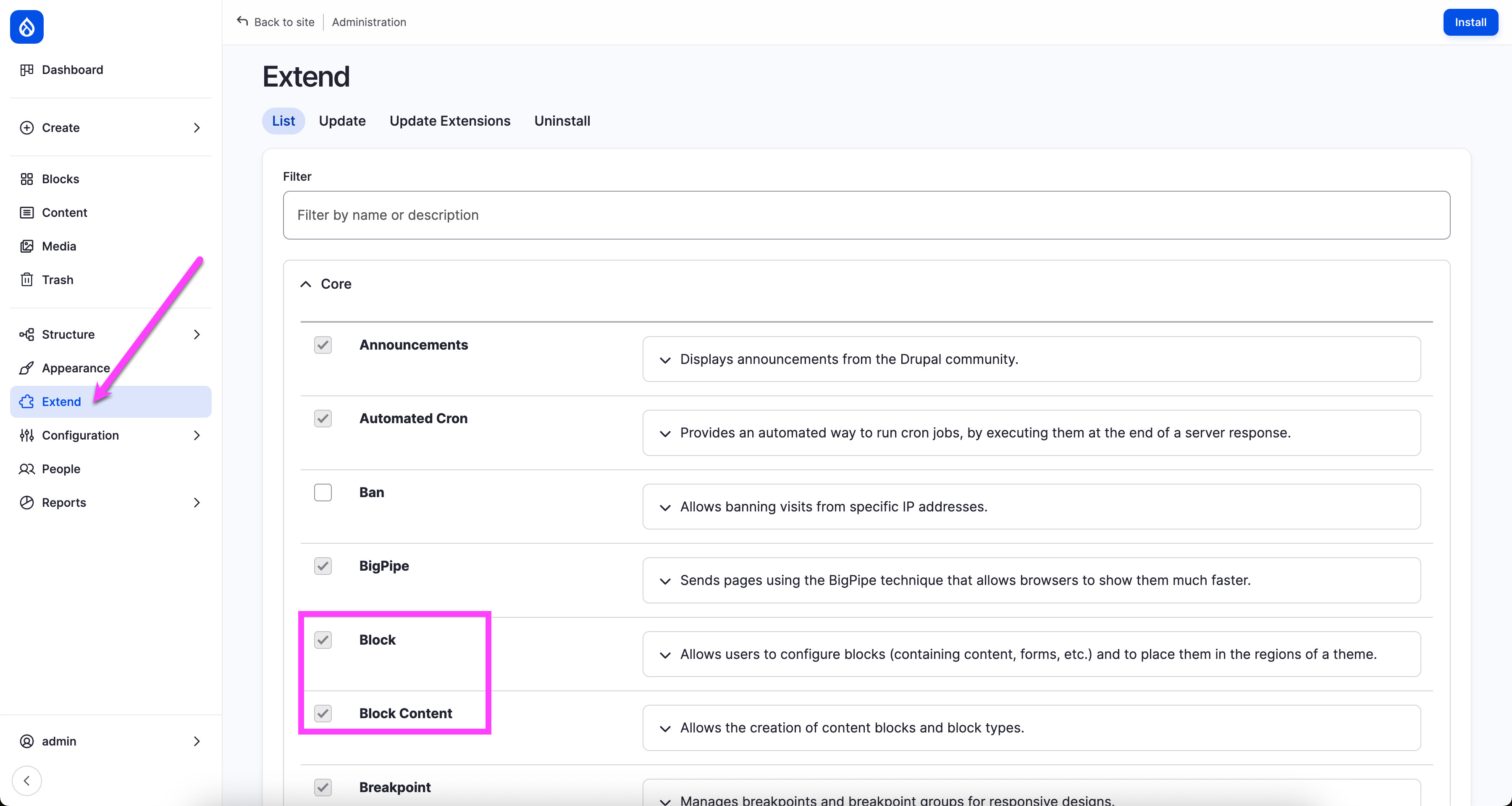
These modules allow you to create and place custom content blocks, including your store locator.
4. Configure Text Format for Embed Code
- Navigate to:
Dashboard → Configuration → Content Authoring → Text Formats and Editors - Click Add Text Format, name it Full HTML.
- Assign permissions for editors (e.g., Administrator, Content Writer).
- Save configuration.
This ensures your MapCosmos embed code can run safely on your site.
5. Add Your Store Locator Page
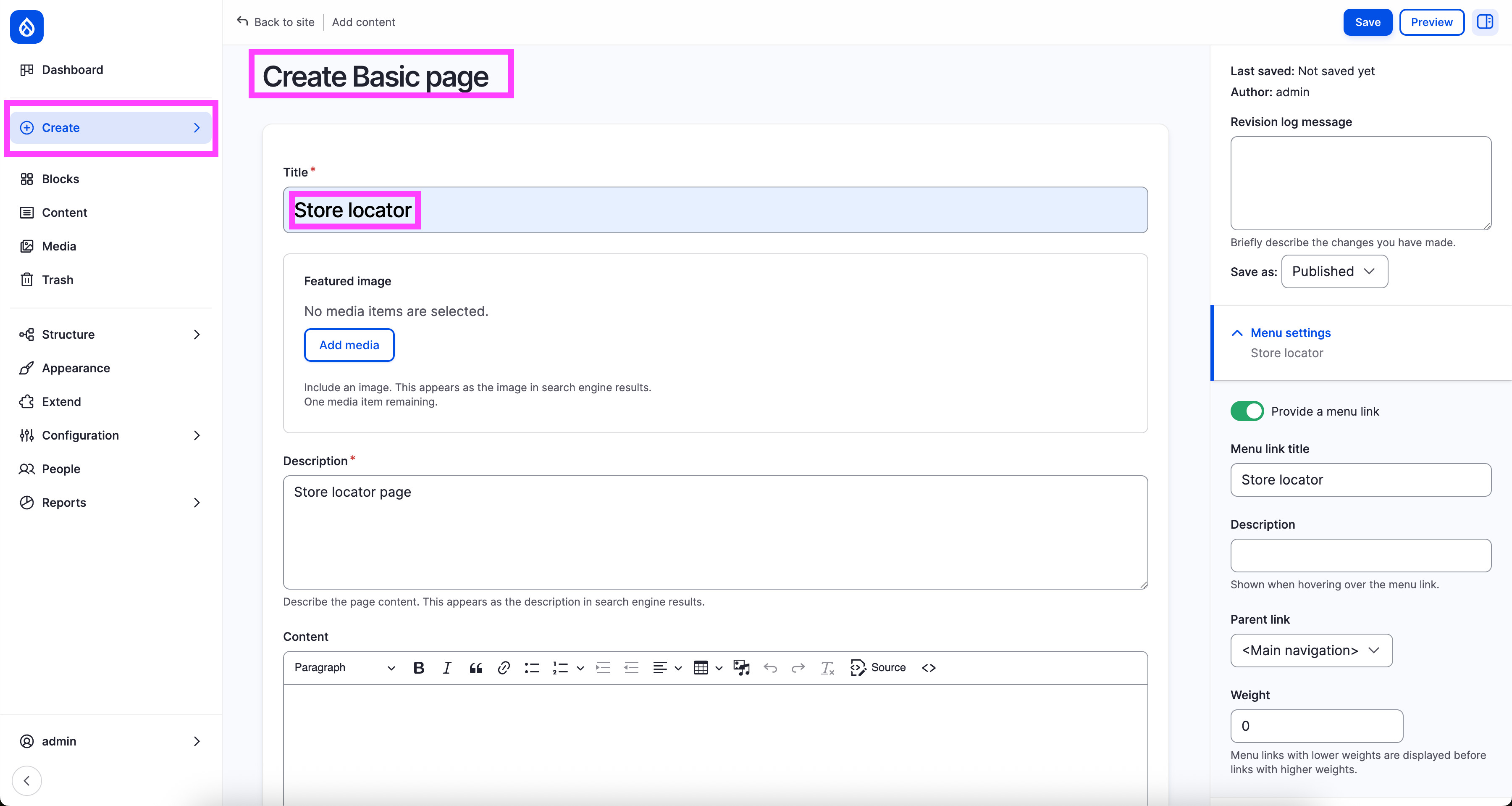
- Go to Content → Add Content → Basic Page.
- Name it something like Store Locator.
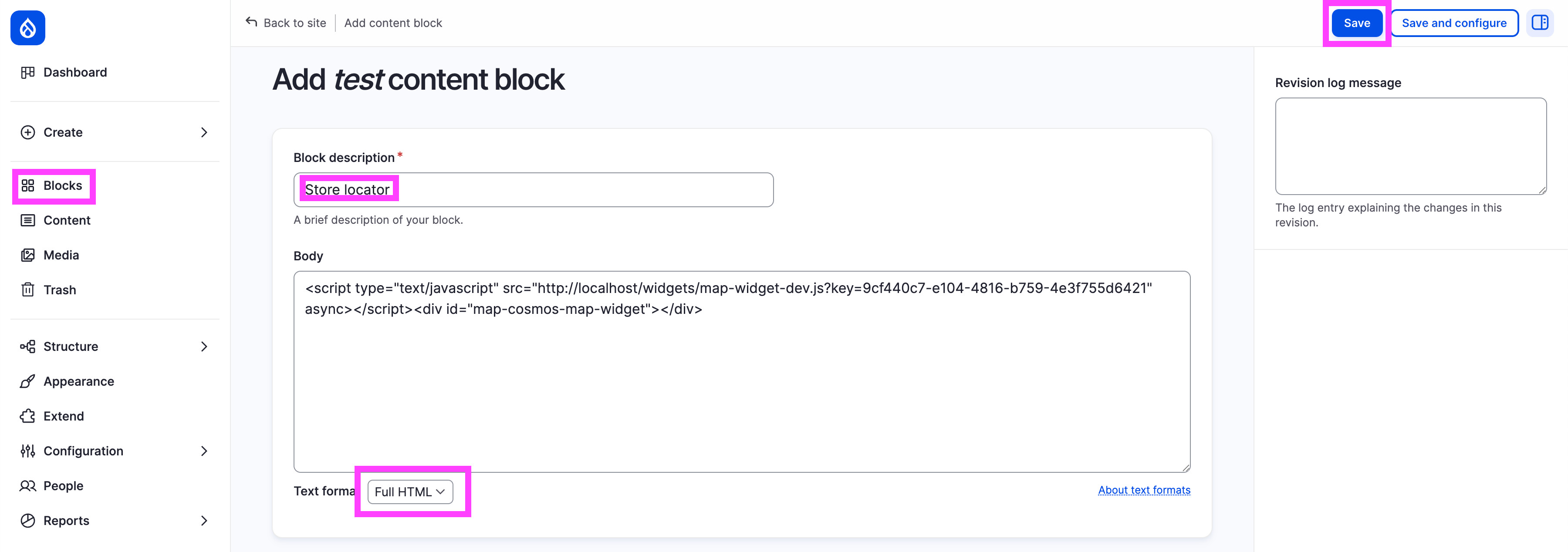
- In the left menu, select Block → Add Content Block, name it Store Locator.
- Switch to Full HTML mode and paste the MapCosmos installation code.
- Save your block.
6. Place the Store Locator Block on Your Page
1. Navigate to Structure → Block Layout.
2. Scroll down to find your new block Store Locator.
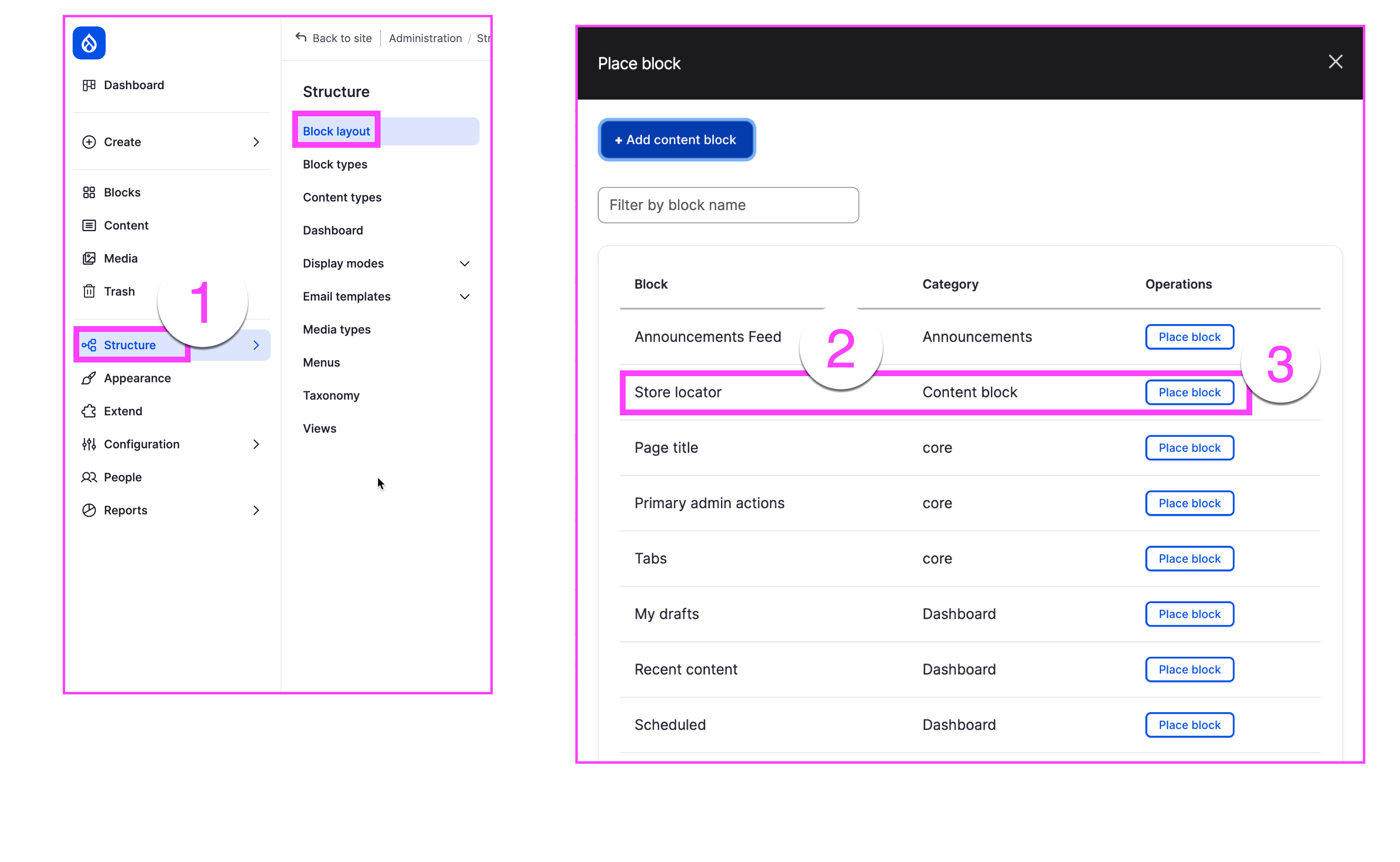
3. Click Place Block
4. Link it to your Store Locator page.
5. Save changes.
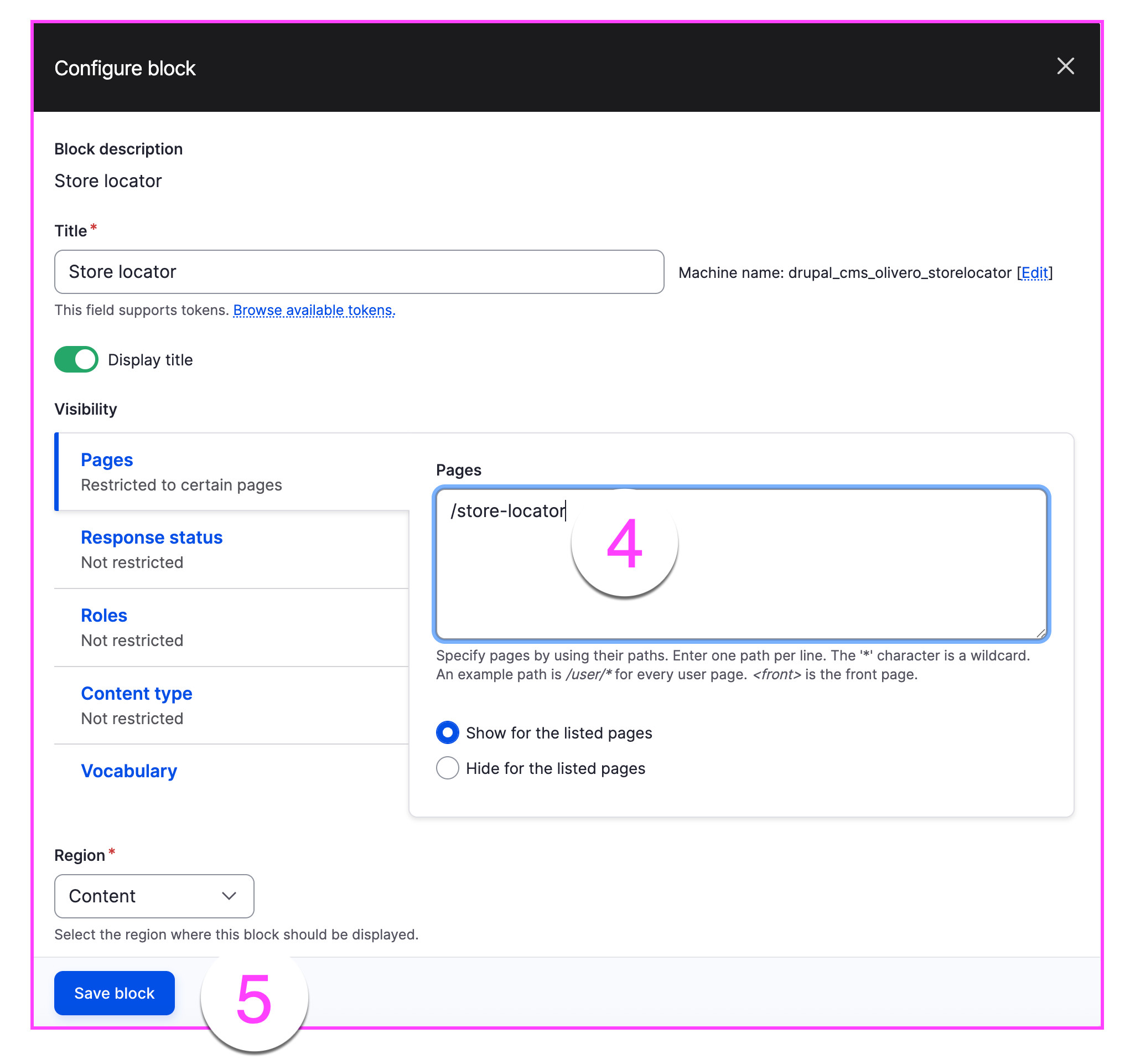
Your store locator is now fully functional and ready for customers to find your locations.
7. Optimize Your Store Locator for SEO
- Include city and region names in your page title and meta description.
- Use structured data like LocalBusiness schema to enhance search engine visibility.
- Add keywords such as:
- Find [City] store
- [Brand] locations near me
- Store map [City/Region]
This will help your store locator rank higher in Google Maps searches and local search results.
✅ Your Drupal website now features a fully integrated MapCosmos store locator, making it easy for users to find your stores and improving your local SEO visibility.