.avif)

How to Add a Store Locator to BigCommerce
Why use a store locator on your BigCommerce store?
The MapCosmos Store Locator for BigCommerce is a dynamic, interactive widget designed to improve customer experience and increase in-store traffic.
It makes it effortless for your online visitors to:
✅ Find the nearest store or service point
✅ Get directions instantly via Google or Apple Maps
✅ Filter locations by products, services, or categories
✅ Access detailed store information (hours, accessibility, parking, downloads, and more)
With a focus on performance, mobile usability, and brand customization, it becomes an essential tool for connecting your online presence with your physical locations.
Let’s see how to add a custom store locator to BigCommerce — step by step.
1. Set up an account
Go to MapCosmos.com and log in or create a free account.
2. Add or import your locations, products, categories, and services
You can manually add entries or upload a CSV/Excel file with all your locations.
💡 Pro Tip: Field Mapping During Data Import
Field mapping ensures your imported file’s columns (e.g., Store Name, Address, Hours) are matched correctly to MapCosmos fields.
- The system will detect your headers (like “City”, “Phone”, “Services”)
- You simply match them to the right field (e.g., Address → address, Opening hours → hours)
- Confirm and finish import
👉 Read more about importing data.
3. Customize your widget
Style your store locator in MapCosmos so it matches your BigCommerce theme:
- Colors, fonts, and layout
- Map provider (Google Maps or Mapbox)
- Default zoom and region
- Filters, categories, and language
4. Add custom fields
You can add extra details for each store, such as:
- Parking availability
- Accessibility information
- Distance from transit hubs
- PDF downloads (price lists, menus, brochures)
- Tags for special services (e.g., “pickup”, “vegan options”, “24/7”)
These details help your customers make faster, more confident choices.
5. Get the installation code
From your MapCosmos dashboard:
- Go to your widget
- Click Installation Code
- Copy the embed code

6. Add the store locator to BigCommerce
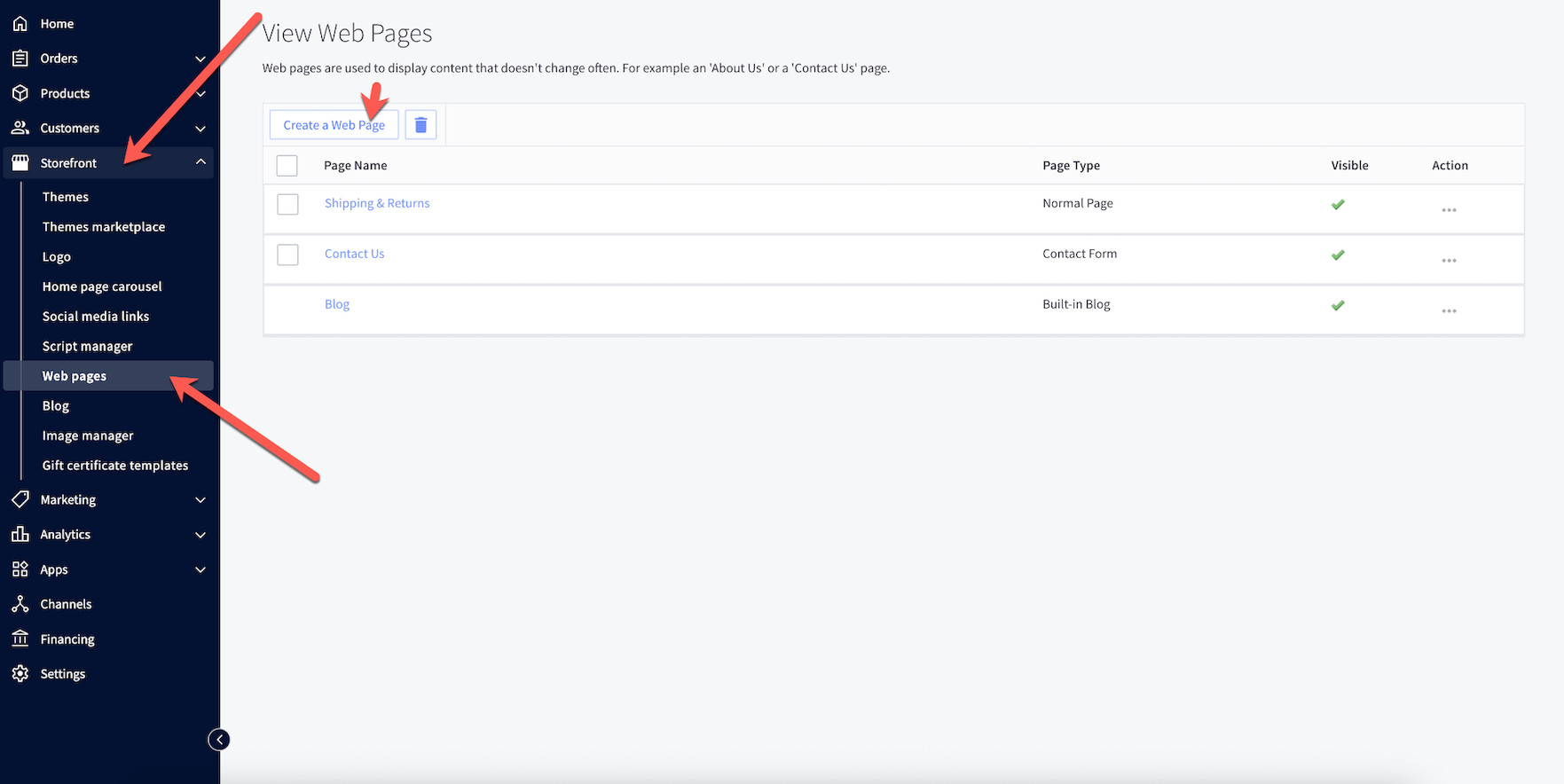
1. In your BigCommerce Admin, go to Storefront → Web Pages
2. Click Create a Web Page
3. Give it a title like Store Locator/Where to find us/etc..
4. Under Page Type, choose Contain content created using the WYSIWYG editor below
5. Scroll down to Page Content and switch to the HTML view (<>) in the editor

6. Paste the embed code from MapCosmos

7. Save
Optional: Add the new Store Locator page to your navigation menu under Storefront → Navigation so customers can easily find it.
7. Save and publish — You’re done! 🚀
You’ve now successfully added a responsive, mobile-friendly store locator to your BigCommerce storefront.
Now your visitors can:
✅ Find the nearest location instantly
✅ Get real-time directions
✅ Filter by products, services, or categories
✅ Access downloads and detailed store info
✅ Connect with your team and your brand offline
🚀 Get started with MapCosmos for free today
and add a powerful, personalized store locator to your BigCommerce store in minutes.